Connect Discord to aiga_ - Step-by-Step guide
Last updated 8 months ago
Add aiga_ Discord bot to your Server
Go to https://www.aiga.io/connections/discord page and scroll down to the Add Bot to Your Server Section. Click + Add to Discord_ button.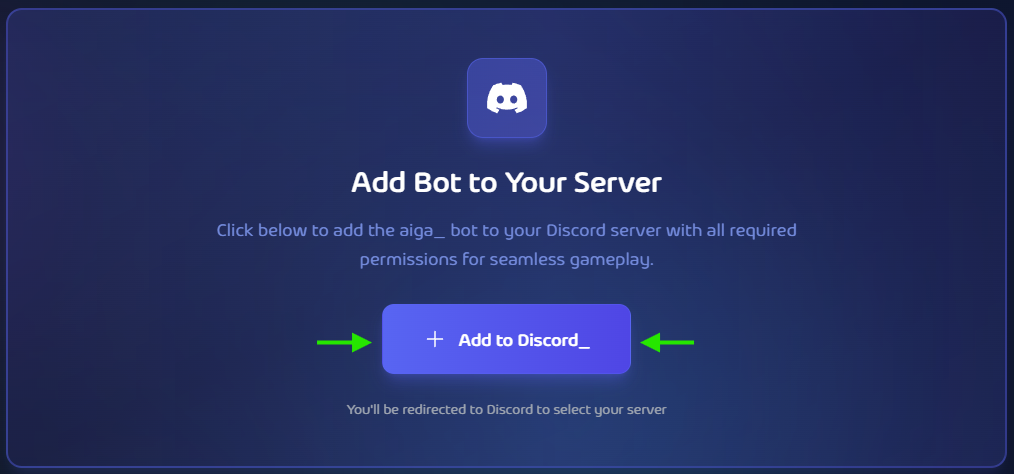
Choose your server
Discord will prompt you to add the bot. Select your server and click Continue.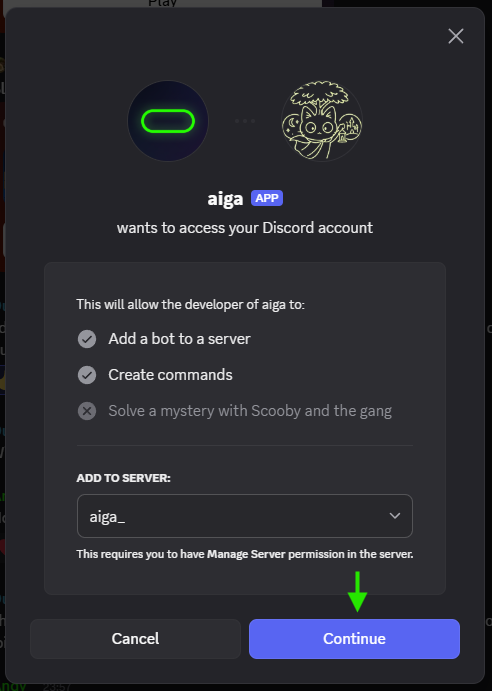
Authorize permissions
Leave all requested permissions enabled, then click Authorize. The aiga_ bot is now in your server.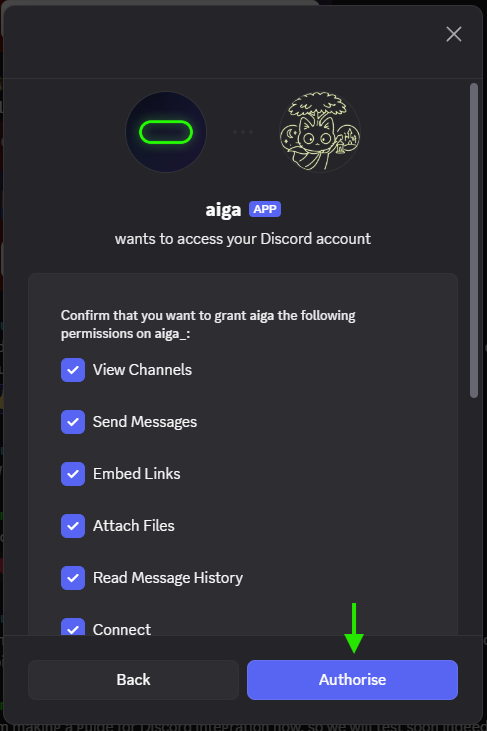
Open AIGA Discord Connections
Go to https://www.aiga.io/connections/discord and scroll to the bottom to generate your Discord Integration Key.Generate the key
Click Generate Key.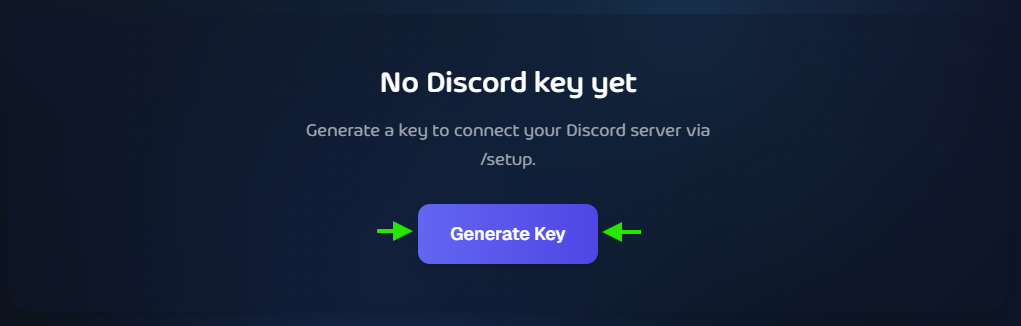
Copy your key
Your integration key is created. You can view/copy it on this page anytime. You’ll paste this key inside Discord in the next step.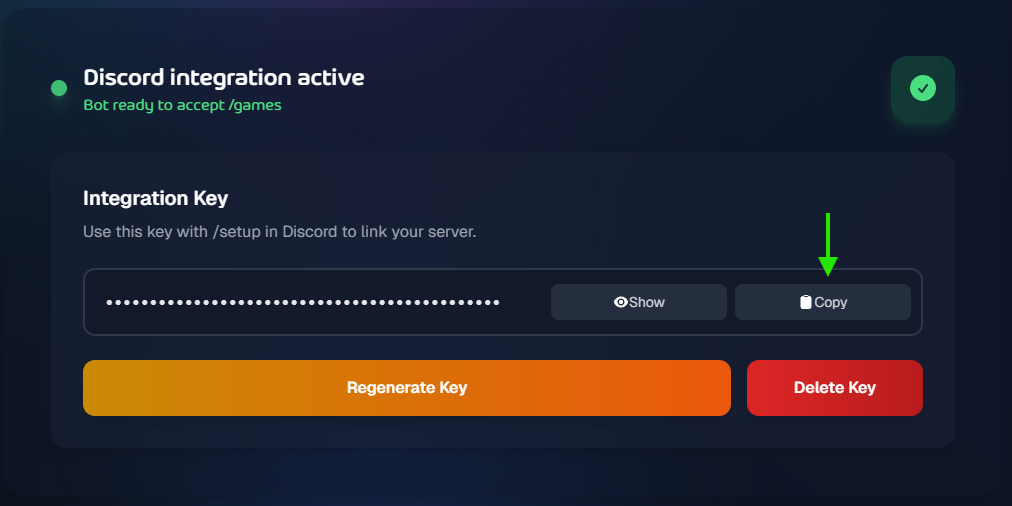
Run the setup in Discord
In your Discord server, type /setup and send it.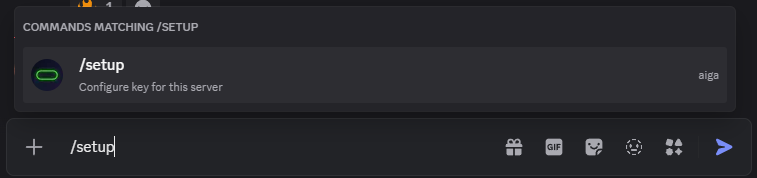
Open the configuration
You’ll get a private (ephemeral) message from the bot. Click Configure Key.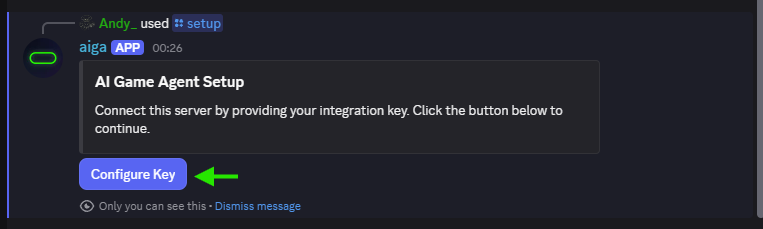
Paste your Integration Key
In the Enter Integration Key popup, paste the key you generated on the AIGA site and submit.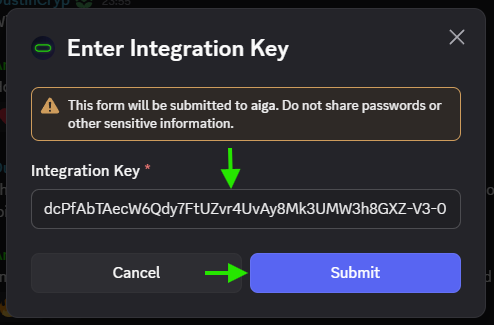
All set!
Your aiga_ account is linked to the Discord bot. You can now start and play community games.