Saving, checking and playing your world
Drafts and saved versions, version history, Review and checks, playing your changes and sharing.
Last updated About 2 hours ago
The World Editor keeps your work safe as you go, checks it for problems, and lets you try it before anyone else sees it. Here’s how saving, versions, checks and playing fit together.
Drafts and versions
Draft autosaved: every change is kept on this device as you work. Close the tab by accident and Resume editing brings it back. A draft lives only on this device and isn’t part of the world yet.
Save version (Ctrl S, ⌘S on Mac): saves your changes into the world as a new version. You need a saved version to play or share your changes, or to keep them on another device. The button says Saved when there’s nothing left to save.
If someone else on your team saved a newer version while you were editing, you’ll be asked to Load latest version or Reapply my changes on top of it.
World actions and version history
The ⋯ menu at the top right opens World actions.
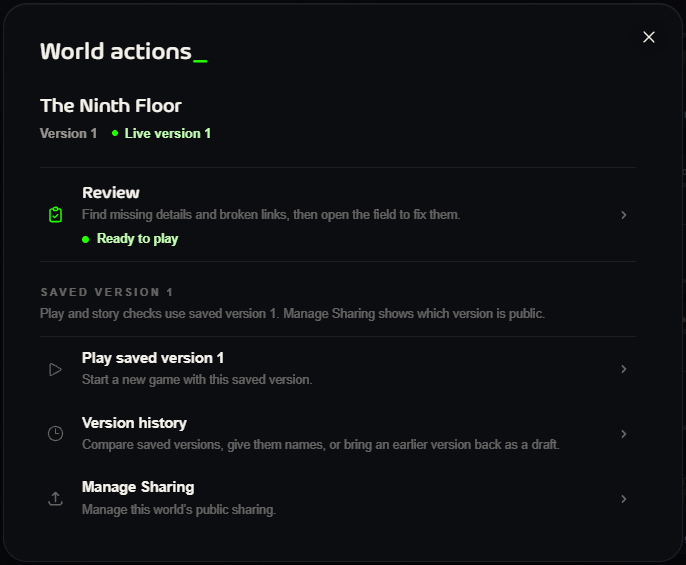
Review: check the world for problems (see below).
Play saved version: start a new game with the version you saved last.
Version history: compare saved versions, give them names, or bring an earlier version back as a draft.
Manage Sharing: see which version is public and update it.
Checks and Review
The status at the top tells you whether your world is ready: No problems, or To fix with a count. Click it to open Review.
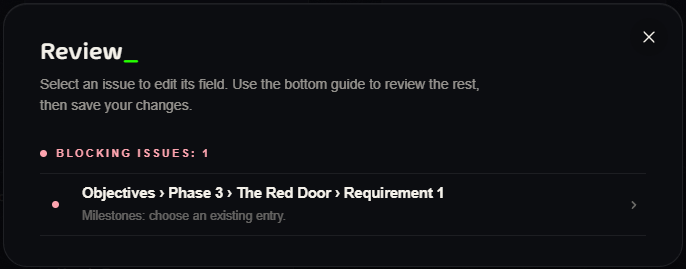
Blocking issues must be fixed before you can play or share, for example a requirement that points at a milestone that doesn’t exist. Click an issue to jump straight to the field.
Every time you save, a content check runs too. It’s free.
Play your changes
Click Play in the header to start a game with your latest saved version. If you have unsaved changes it says Save and play and saves first.
Games already running don’t change. Each game keeps the version it started with. Your edits reach new games only.
Share your world
Switch the header from Edit to Share to publish your world. You’ll pick one art style for all its pictures, pass the checks, create the pictures and go live.
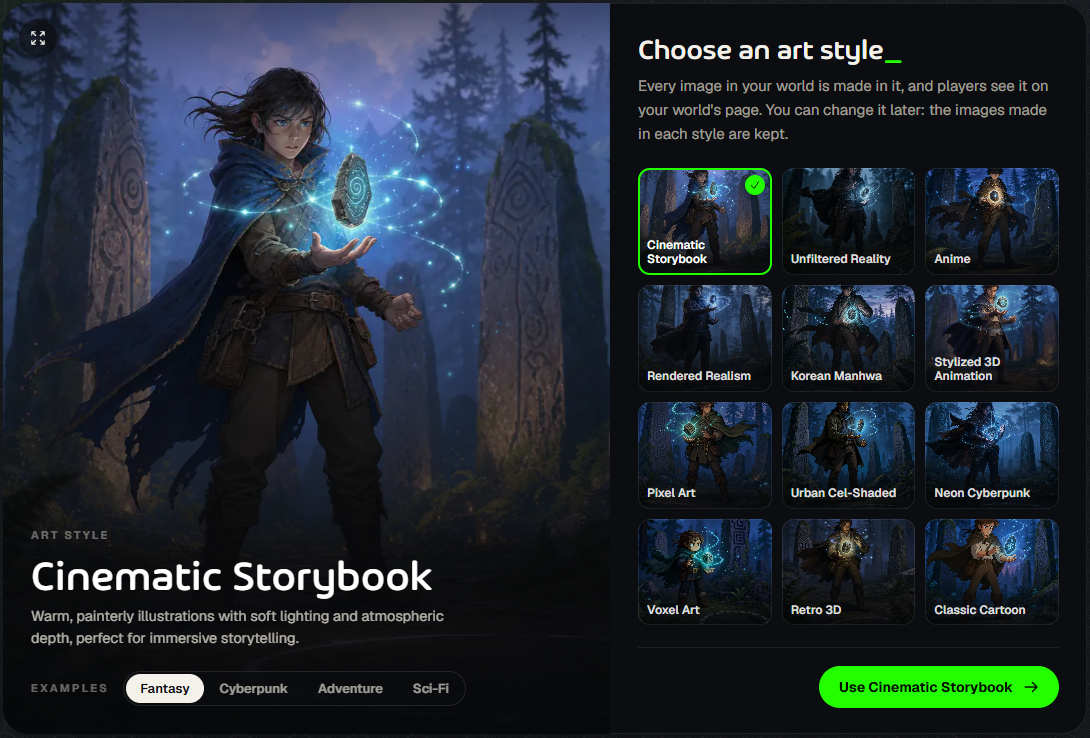
The full walkthrough is in How to Share a World.
Good to know
Exit editing leaves the editor. Unsaved changes stay as a draft on this device.
Notes, frames, card positions and the map’s zoom are saved on this device only. They aren’t part of the world, so other devices and team members won’t see them.
Kingpin worlds can’t be edited after they’re first shared.
Read next
Was this helpful?
Still need help? Ask the team