How to Delete a Game
Remove a game and its story, pictures and votes for good. The world it was played in stays.
Last updated About 1 hour ago
Deleting a game removes it, and everything that happened in it, for good. The world you played in is not touched: you can start a new game there whenever you like.
Delete a game
Open Games and find the game. If you can’t see it, switch between Single Player Games and Community Games, or use the search box.
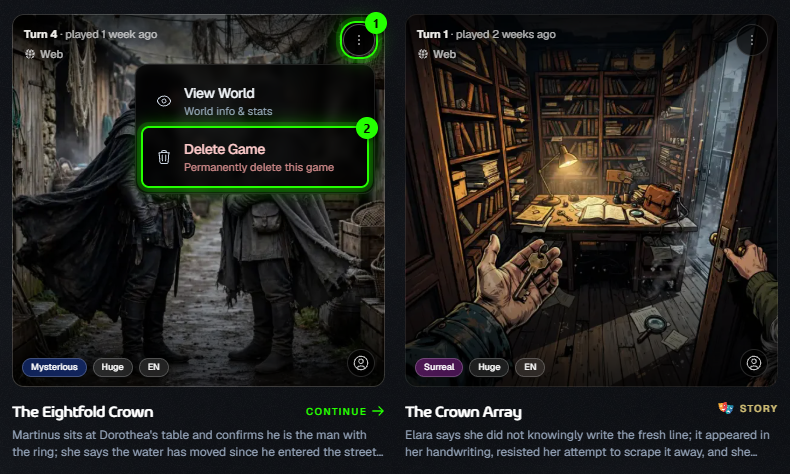
Click the ⋮ button on the game’s card (1), then choose Delete Game (2).
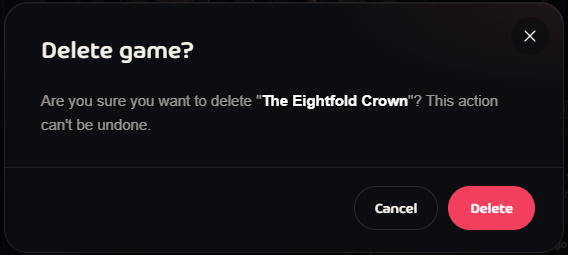
In the Delete game? window, check the name and click Delete. Click Cancel if you change your mind.
You’ll see Game deleted and the card disappears from your list.
What gets deleted
Every turn and the whole story so far
The game’s pictures, videos and narration
For community games: the votes, and the game is no longer available for anyone to play
What stays: the world itself, your other games and your credit balance.
There is no undo. A deleted game can’t be restored, not even by support. If you only want a break, just leave the game: it waits for you. A community game can also be paused from the same ⋮ menu.
Questions
I don’t see Delete Game. Only the person who started the game can delete it. For a community game someone else runs, ask them.
It says the cleanup was interrupted. The game is locked so nothing new happens in it. Try deleting it again.
Was this helpful?
Still need help? Ask the team