Updating and Managing a Shared World
Share updates, keep pictures current, and stop sharing a world, without breaking games already in progress.
Last updated About 1 hour ago
Once your world is shared you can keep improving it. Players only see your changes when you share a new version, so you can edit in peace.
Share an update
Edit your world in the World Editor as usual and save a version. The header then says changes not shared.
Open the Share screen. Not live yet lists what’s new, changed or removed since the public version.
Click Share version and the number. If the update needs new pictures, for example for a new character, the price is shown on the button.
New games start on the new version. Games already running stay on the version they started with, so an update never breaks someone’s adventure.
Keep the pictures up to date
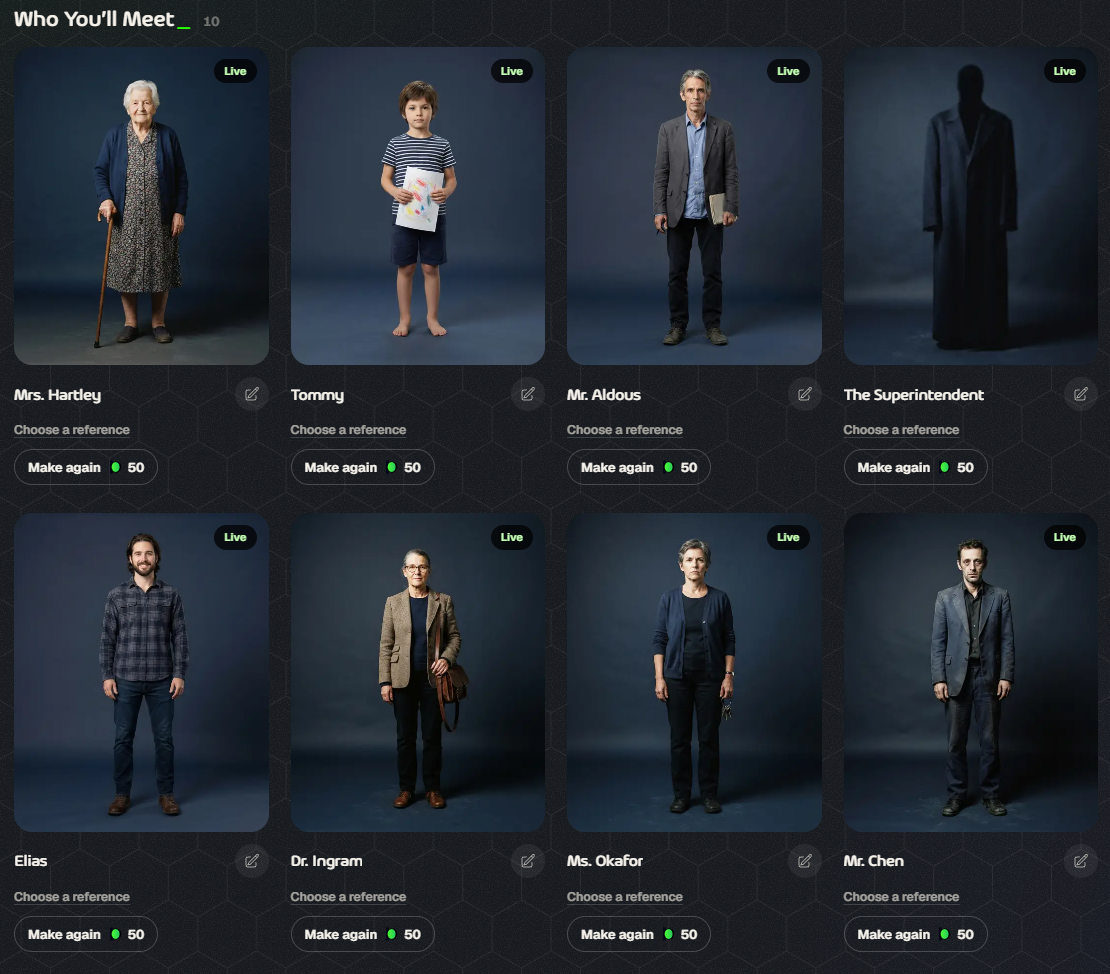
Every picture shows where it stands:
Live: players see it.
Not made yet or Its card changed: click Make to create it.
Being made…: wait a moment; you can leave the page.
Couldn’t be made: click Try again.
Making or remaking a picture costs 50 credits. Choosing a picture you already made is free. When you’re happy, click Share image changes to put them live. To change the whole look, see Art Styles for Shared Worlds.
Stop sharing
On the Share screen, click Stop sharing and confirm Unshare. Your world leaves Shared Worlds, games already running keep going, and your pictures are kept, so sharing again later doesn’t remake them.
Withdraw any sponsorship credits first. See Sponsorship.
Kingpin worlds can’t be unshared.
Good to know
A world that has ever been shared can’t be deleted.
If you delete your account, your shared worlds move to @aiga_ so players can keep playing them, and they no longer show your name.
If a world shows Sharing is paused for this world, it didn’t pass a content review. Contact support if you think that’s a mistake.
Was this helpful?
Still need help? Ask the team