The World Editor: a quick tour
Open the World Editor, find your way around the map, edit and add cards, and the shortcuts that save time.
Last updated About 3 hours ago
The World Editor is where you change anything in a world you made: its places, characters, factions, your hero and the story path. Everything sits on one map, and you edit a card by clicking it.
Open the editor
Open your world from Worlds → My Worlds and click Edit World at the top of its page. If you left unsaved changes last time, the button says Resume editing and picks up where you stopped.
The editor at a glance
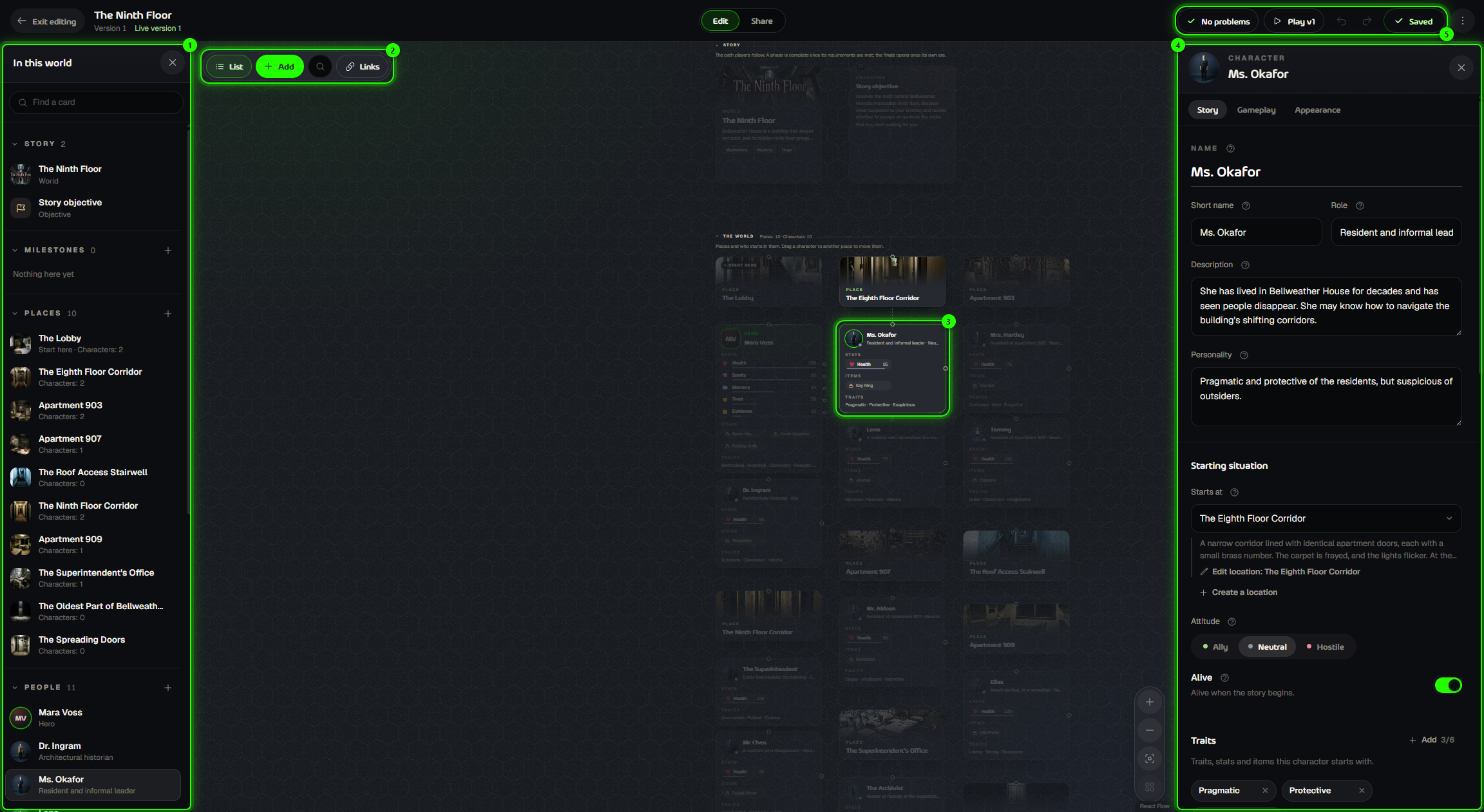
List: every card in the world, grouped into Story, Milestones, Places, People and Factions. Type in Find a card to jump to one. Needs attention shows only the cards with something to fix.
Toolbar: Add a card, Search the map, and choose which Links to show: just the selected card’s, or all of them.
The map: your whole world as cards, in four lanes (see below). The card you’re editing is highlighted.
Card editor: the fields of the selected card, in three tabs: Story, Gameplay and Appearance.
Status and saving: whether anything needs fixing, Play your world, undo and redo, and Save version. The ⋯ menu opens World actions.
The four lanes
Story: the path players follow. In an RPG that’s three phases and a finale; in other types it’s the objective or story goal. See Building your story.
What the story needs: the milestones and items that the story’s steps ask for.
The world: your places, with the characters who start in each one underneath. Start here marks where the hero begins. Drag a character to another place to change where they start.
Factions: the groups in your world and how they feel about the hero.
Edit a card
Click any card and its editor opens beside the map. What you can change depends on the card:
Characters: name, role, description and personality; where they start; whether they’re an ally, neutral or hostile; whether they’re alive; and their traits, money, stats and items.
Places: name and description, and whether the story starts there.
Factions: description, goals, attitude to the hero, and whether they’re intact at the start.
Your hero: description, starting place, traits, stats, money and starting items.
The world card: name, premise, tone, genre, size, background and art style.
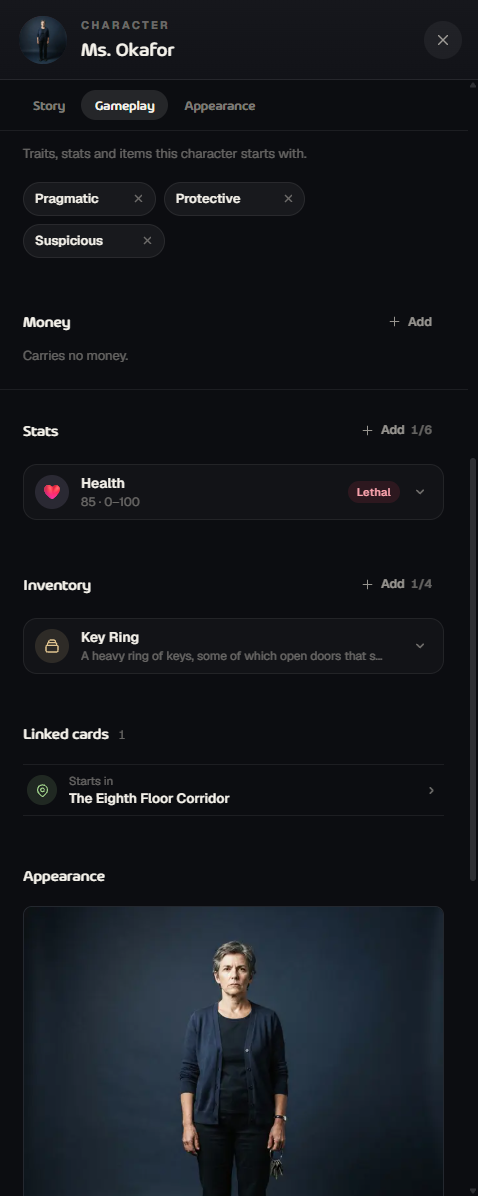
The Appearance tab holds the card’s picture. Describe how it should look, pick a reference from My Images if you like, and generate it. Each picture costs 50 credits, shown on the button.
Add cards
Click Add, double-click an empty part of the map, or right-click the map.
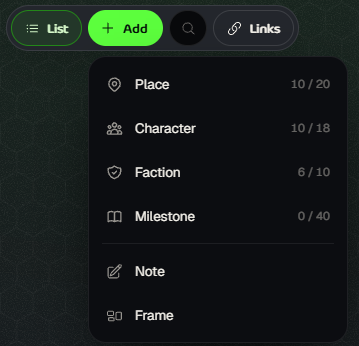
The numbers show how many you have and how many fit. Bigger worlds hold more; you can change the size on the world card.
Notes and Frames are just for you: sticky notes and boxes to organise the map. Players never see them, and they stay on this device.
Right-click a card for more: show its links, duplicate it, move it, put it in a frame, colour it or remove it.
Keyboard shortcuts
On a phone or tablet: tap a card to edit it in the panel under the map, and press and hold a card to move it.
Read next
Was this helpful?
Still need help? Ask the team